
Introduction
AI is rapidly transforming the way websites are built and managed. WordPress introduced a new setting called Connectors. At first many users assume that WordPress now comes with a built-in ChatGPT-like assistant that creates content and images with a single prompt. That’s not what exactly Connectors are designed to do.
AI Connectors provides a standardized way for WordPress to connect with external AI services like Gemini, OpenAI, Anthropic. Instead of each plugin managing its own AI setup, now Connectors aim to make the process easier by offering the compatible plugins the same AI provider.
In this blog, we’ll explore what AI Connectors are, the benefits of it, how to set it up and how to start using it once it’s connected.
What Connectors Actually Are
WordPress 7.0 introduced a new feature called Connectors which provides site owners a single place to store API keys for AI providers – Anthropic, OpenAI, Google. As the page itself says “Configure once and use everywhere.”
Prior to this each plugin that wanted to use AI had its own settings page and required its own API key. For example SEO plugin, Image generator plugin, or a chatbot plugin stored its credentials separately, so users have to enter the same API key multiple times. This resulted in repetitive setup and made switching AI providers more complicated.
Connectors act as a layer between WordPress and external AI services. They do not create images, content or act as an AI assistant themselves. Instead they provide a shared framework which allows compatible plugins to access the same AI provider.
Developers can create AI-plugins without having separate integrations for each AI provider.
For Website owners, they can manage their AI API keys in one location instead of setting them up for each plugin.
What They Are Not
1. Connectors do not generate content or images on their own
Adding API keys to connectors won’t automatically create images, contents. You still need a compatible plugin that can use the AI provider.
2. Connectors are not replacement for AI plugins
You still need to install a compatible plugin – connecting an API key does not unlock any feature by itself, a compatible plugin needs to be installed like Yoast SEO or AI Engine– to change any text, content or SEO related for your website.
3. Connectors do not work with every plugin
Because a connector is set up not every plugin becomes AI-powered. Only plugins that are specifically built to use the WordPress 7’s new connector setting can use it.
Benefits of AI Connectors
1. One setup, many plugins. Add your API key once – and every compatible plugin can use it, which reduces repetitive setup.
2. Simplified provider management. Manage API keys for different AI services like Gemini, Anthropic and OpenAI in one place, making them easier to organize.
3. Improved developer experience. Instead of creating separate integrations for every AI service, developers can build AI-powered plugins without extra setup.
4. Manage AI services in one place. Through a single setting page manage all API keys of different AI services in one place.
How to Set Up AI Connectors
Setting up Connectors takes a few minutes. Before you begin, make sure your website is running on WordPress 7.0
Step1: Navigate to Connectors
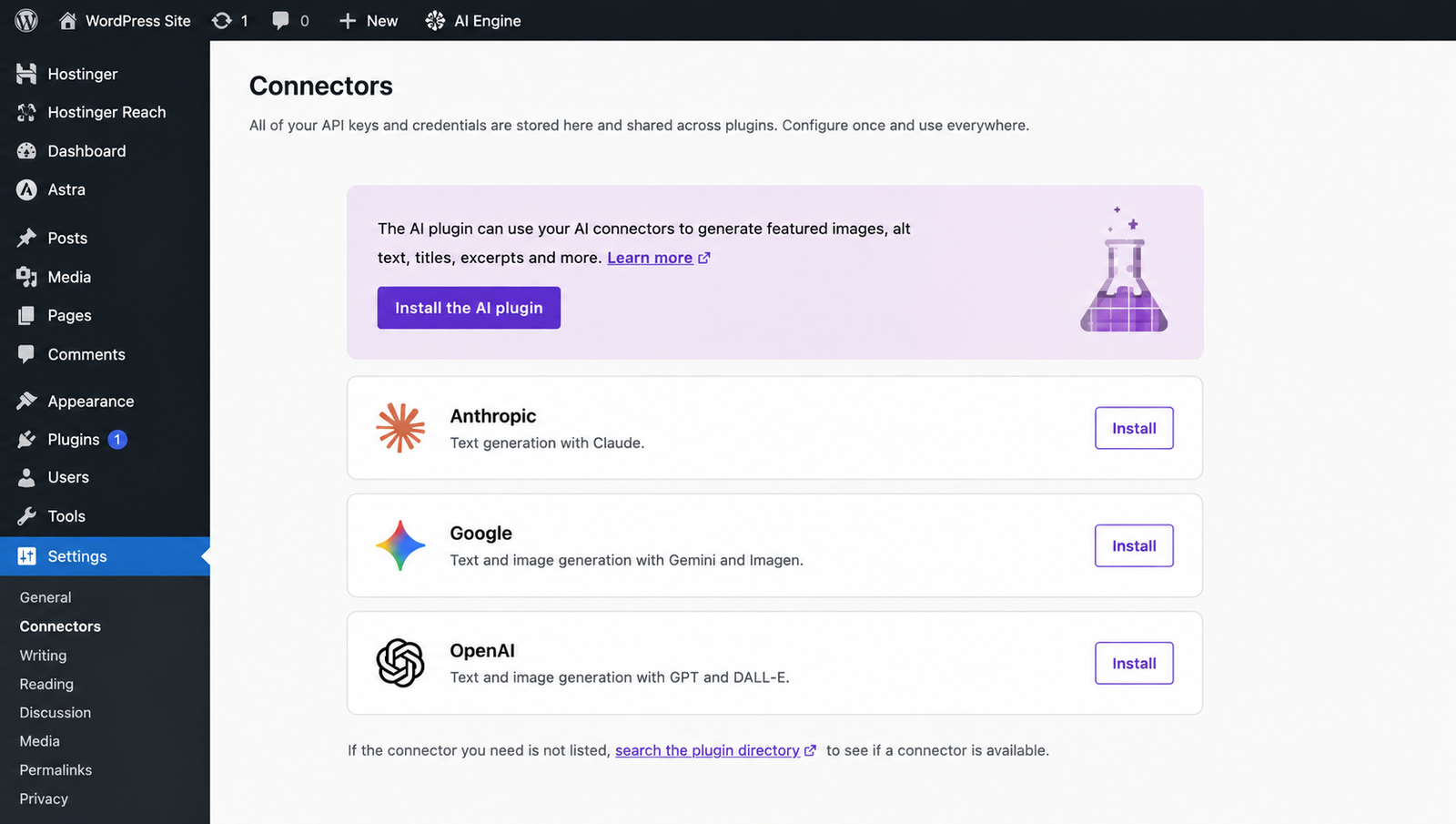
In your dashboard, navigate to Settings → Connectors. You can see AI services like Anthropic, Google and OpenAI.
Step2: Choose an AI Provider
Select an AI Provider you want to use. If you want to use Google Click install.
Step3. Get your API Key
Each provider requires an API Key. Here’s where to get one:
Anthropic (Claude) : console.anthropic.com
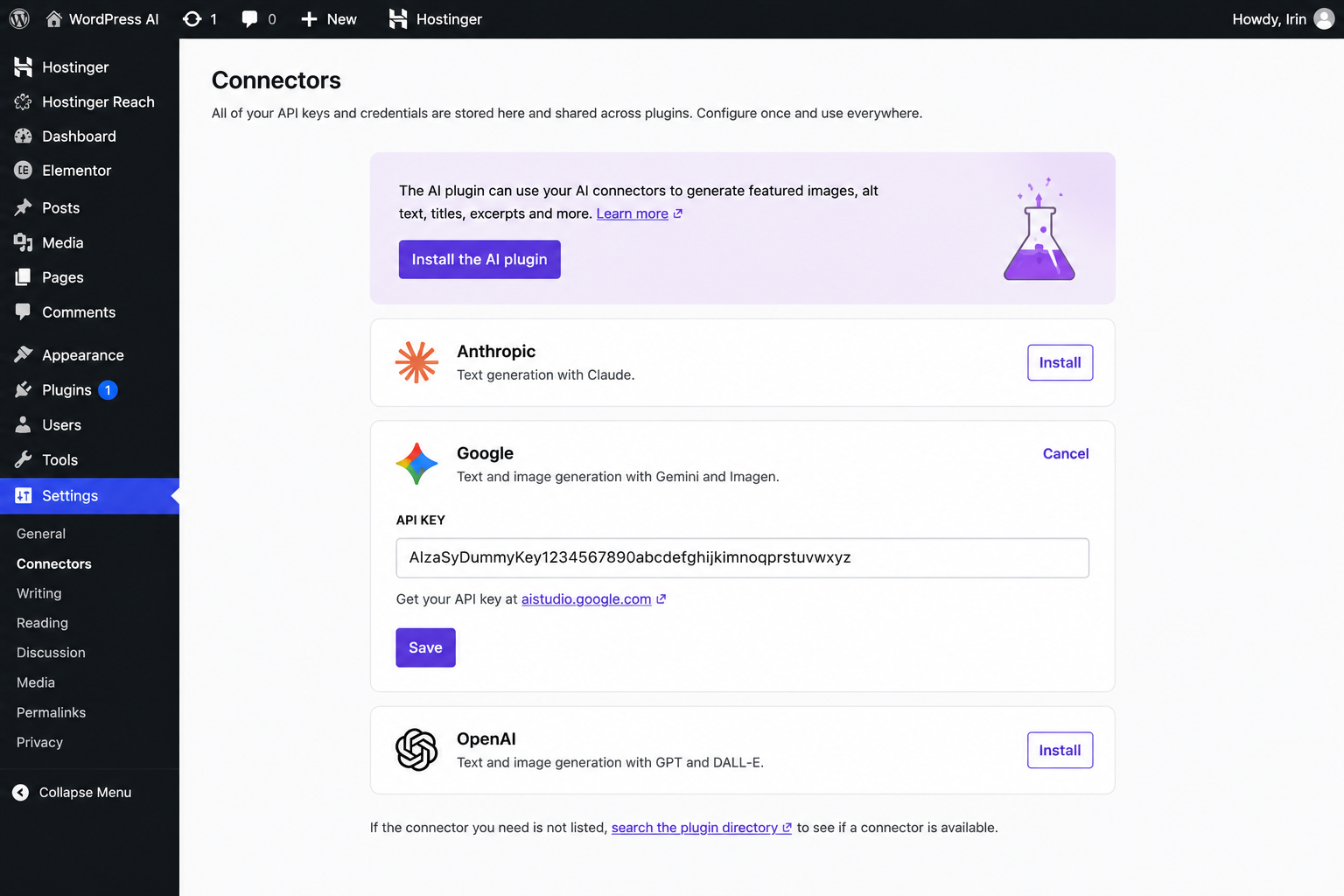
Google (Gemini) : aistudio.google.com
OpenAI (ChatGPT): platform.openai.com
Pricing for each:
Anthropic and ChatGPT no free tier billing is required, for Google offers a free tier with up to 1500 requests per day.
Create an account, purchase a subscription generate an API key
Step4: Set up API key
After clicking install enter your API key and click save.
Step5: Install a compatible plugin
To make use of the connectors, install a compatible plugin and once installed these plugins will automatically use your connected API key.
How to Use Connectors
Step1: Verify the Connection
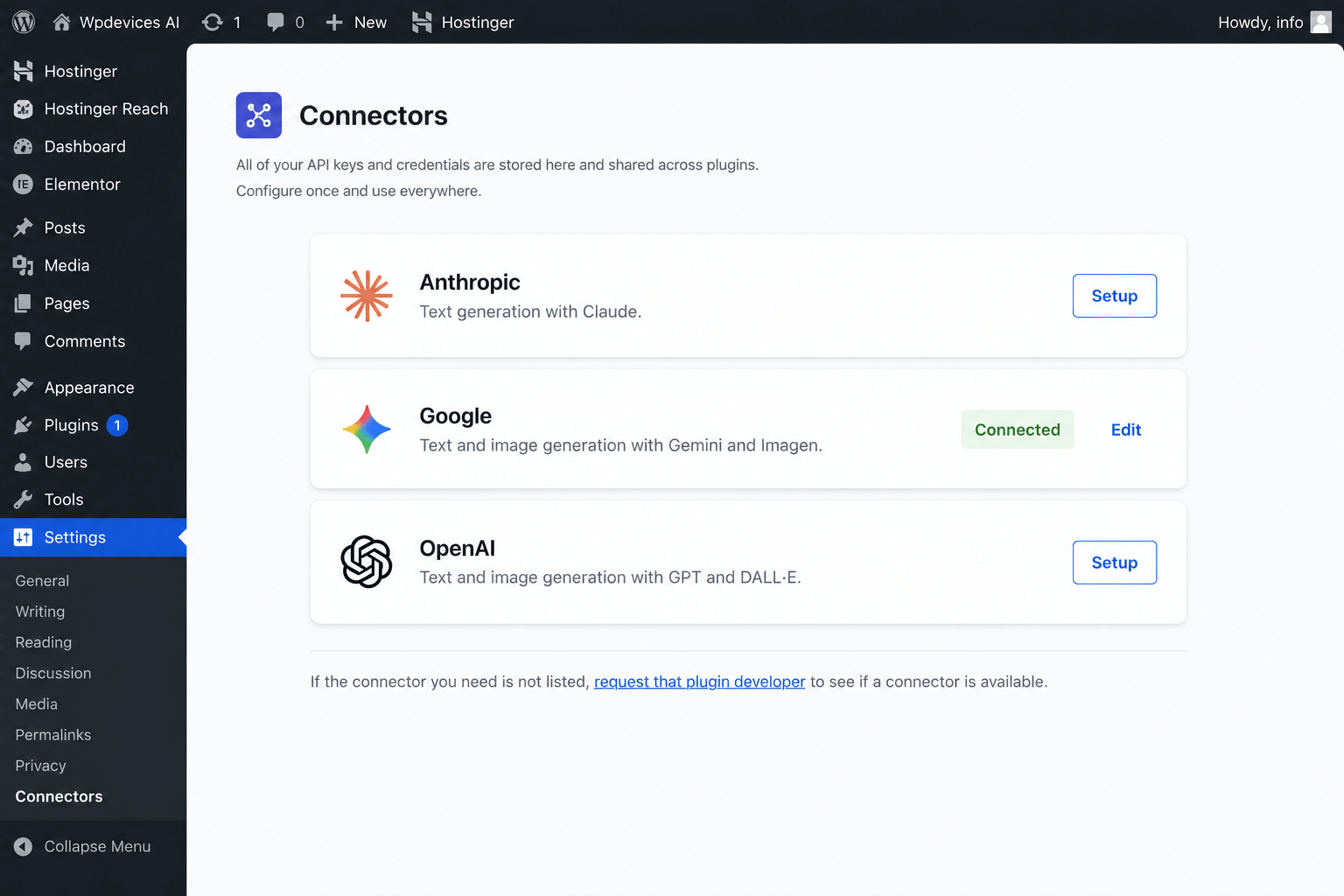
After adding your API key to the respective AI service, then if it’s valid it says connected.
Step2: Install compatible plugin
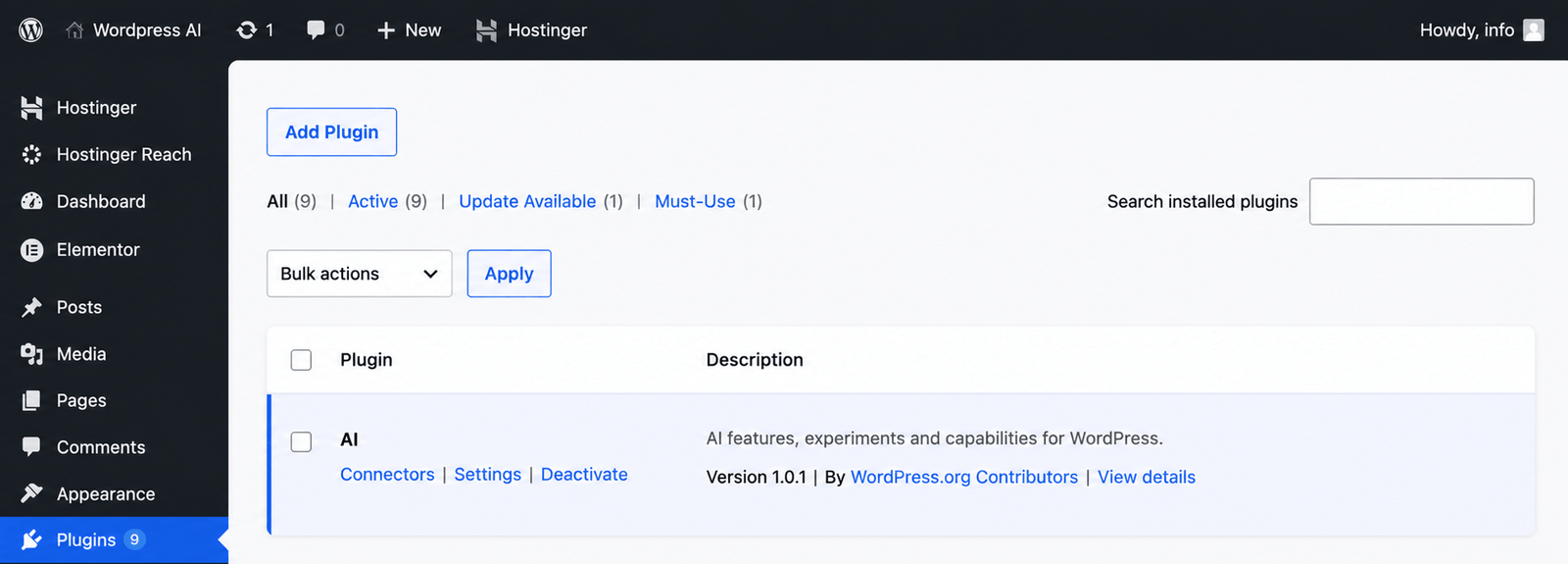
Install a plugin like – AI plugin that supports connectors settings.
Step3: Enable AI Plugin features
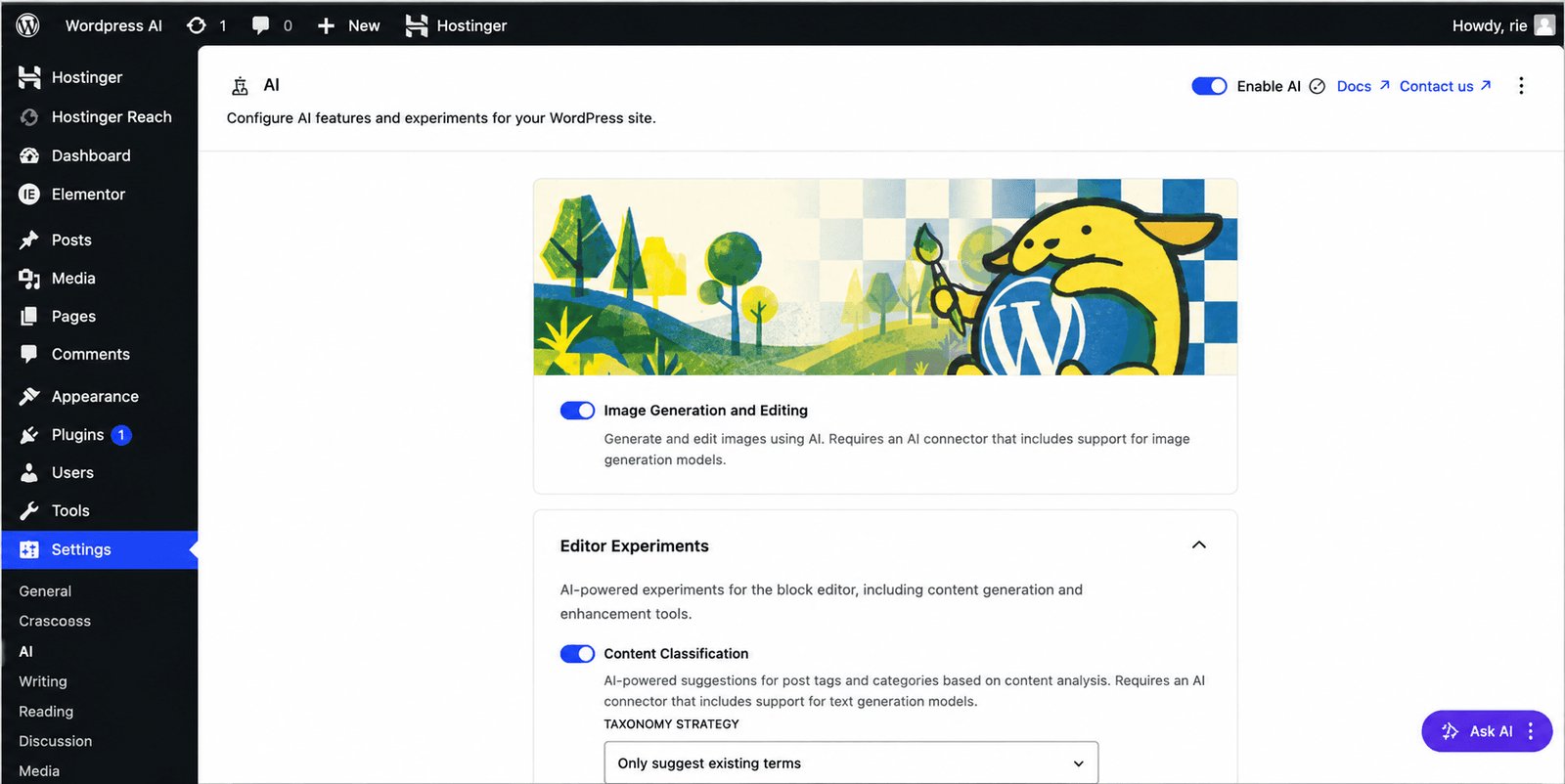
Go to Settings → AI and enable AI. You can also turn on the AI features you want to use, such as content generation or image generation.
Step4: Start using AI features
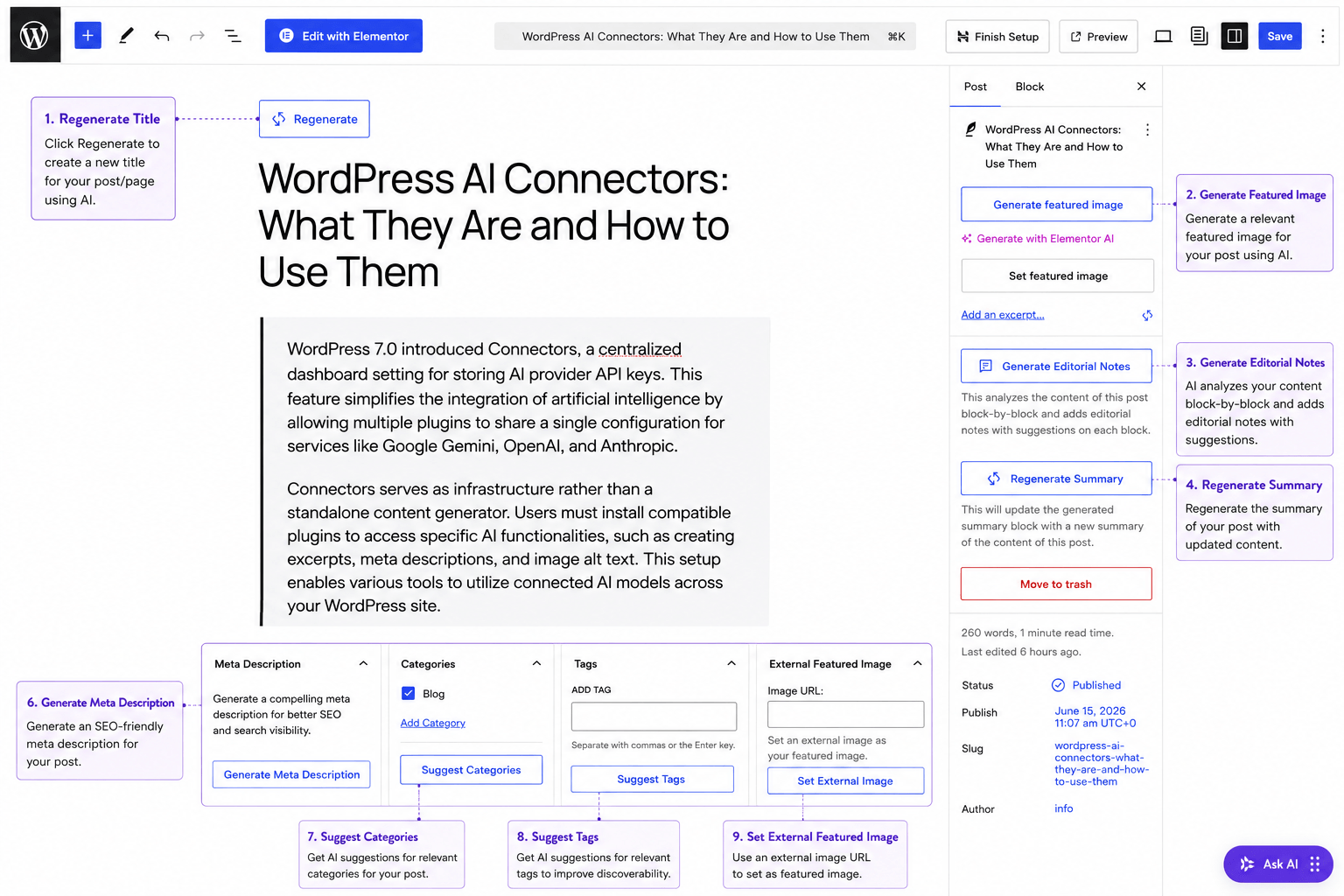
Open the Block Editor and create a new post or page. The WordPress AI plugin provides several AI-powered features that work with Connectors, including:
- Regenerate the title of a post or page.
- Generate a featured image for posts.
- Create Editorial Notes with suggestions for improving content.
- Regenerate the post summary.
- Generate a meta description.
- Suggest relevant tags and categories based on the content.
Simply select the AI feature you want to use, and the plugin will use the AI provider connected through Connectors to generate the output.
Conclusion
WordPress Connectors is a small setting but important step in how WordPress handles AI. We now have one centralized place to manage all AI services, instead of setting up API keys separately for every plugin.
Connectors are simple. Connect your preferred AI provider, install a compatible plugin, enable the features as per requirements, and based on required features you can use for AI content generation, image generation, categories and tags suggestion, meta description generation and more – all from within your WordPress dashboard. As the WordPress AI ecosystem grows, Connectors are likely to make managing AI tools much easier for both website owners and developers.

Ready to scope your next initiative?
Share your goals with our Bangalore team. We respond within one business day with a clear path from discovery to delivery.